Welcome to the Allwalks Sociology
Online Community Forum
- a private and safe place
for people with common sociological interests
to connect, share, and learn.
Overview of purpose, structure, and terminology
The intent of the Allwalks Sociology Community Forum is to provide a safe, secure place where people with a common interest can participate in conversations as well as live meetings in order to share their views and to learn different perspectives from other group members. Each group is hosted by a convener (organizer) who is responsible for selecting the group members, the topics and the activities. The site is completely private and therefore has no advertising and no background monitoring of conversations by any companies such as Facebook, Google, Apple etc.
The Allwalks Sociology Community Forum is made available by Allwalks Sociology at no cost to members or conveners and without advertising or sponsors.
Terminology (words that you will see and hear mentioned in the Community)
- Convener: someone who wishes to organize a group of people to discuss topics chosen by the convener. A convener can have multiple Groups, each with its own members and topics.
- Groups: all members of the Community belong to a Group but can also belong to more than one Group. Groups are created by Conveners. After creating a Group(s) in the Community, a Convener can invite friends and colleagues to become members in his/her Group. The Convener also decides what discussion topics (Channels) and activities are available to each Group.
- Meetups are live sessions hosted right inside the Community on a per-Group basis (meaning that Meetups are set up within Groups and can only be attended by members of that Group. Meetups look like and behave like other platforms (such as Zoom) except that they are accessed and attended inside the Community without the need for external links or licences. The Meetups page shows members upcoming dates and times, allowing members to add the events to their calendar and to indicate whether or not they plan to attend. After each live session, the recording is automatically published on the same page for members to watch at their convenience.
- Channels: are the items in each Group's dashboard that are for posting comments and for reading other people's comments. Think of a Channel as a topic of conversation. Each Group can have many Channels (topics), all set up by the Convener of the Group. Members of a Group can only see and participate in the Channels set up within their Group.
- Post(s) refers to comments or questions input by Members in a Channel. Posts are multi-media. They can be text messages typed by the member, uploaded documents, images, videos or audios. When using a mobile phone, members can record a video or audio in real-time and upload it directly to the post in the Channel.
- Feed is a more global listing of all posts from all Channels. As opposed to a member having to consciously select a Group and then look at the posts for that Group, the Feed option allows the member to see every post from every Group that they belong to.
- Challenges are a way to gamify a Group in order to encourage engagement and to introduce some fun to the Group. Challenges are designed and set up by a Convener for his/her Group(s). Each Challenge can have its own unique steps and objectives. When a member completes a challenge, the system will award badges and points. A Leaderboard can be enabled to show which members are gaining the most points. Challenges are entirely optional.
- Direct Messages allow members to send a private message to another member.
- Notifications: This refers to email notifications that appear in a member's inbox or push notifications that appear on their phone if they are using the mobile app. Notifications let membes know when a new Meetup is scheduled and about to go live, as well as when a member has sent another member a private message or has mentioned that other member in a conversation post. Each member can manage which notifications they wish to receive or not receive. Members can use the @ symbol in their posts to reference someone so that they receive a notification when the post is published. (e.g., @Tina)
Access
There are two methods for conveners and members to access their Group(s)
1. On a laptop or desktop computer, using an internet browser
2. On a mobile device, using the free mobile app
The mobile and desktop apps provide essentially the same functionality. The difference is that the desktop app is easier to view because it fills the screen, whereas the mobile app offers anytime, anywhere convenience with a single tap of the icon on your mobile phone display. You can use either the desktop app or the mobile app, or both. The good news is that you can switch back and forth between the two and always be completely in sync and up to date.
To get started, follow the instructions below to access your Community from your desktop computer. If you prefer to use only the mobile app, you can skip Step 1 for the computer version and proceed directly to Step 2: Mobile App. That said, we strongly recommend that you set it up and get acquainted first on the wider screen of a desktop computer, then ADD the mobile app.
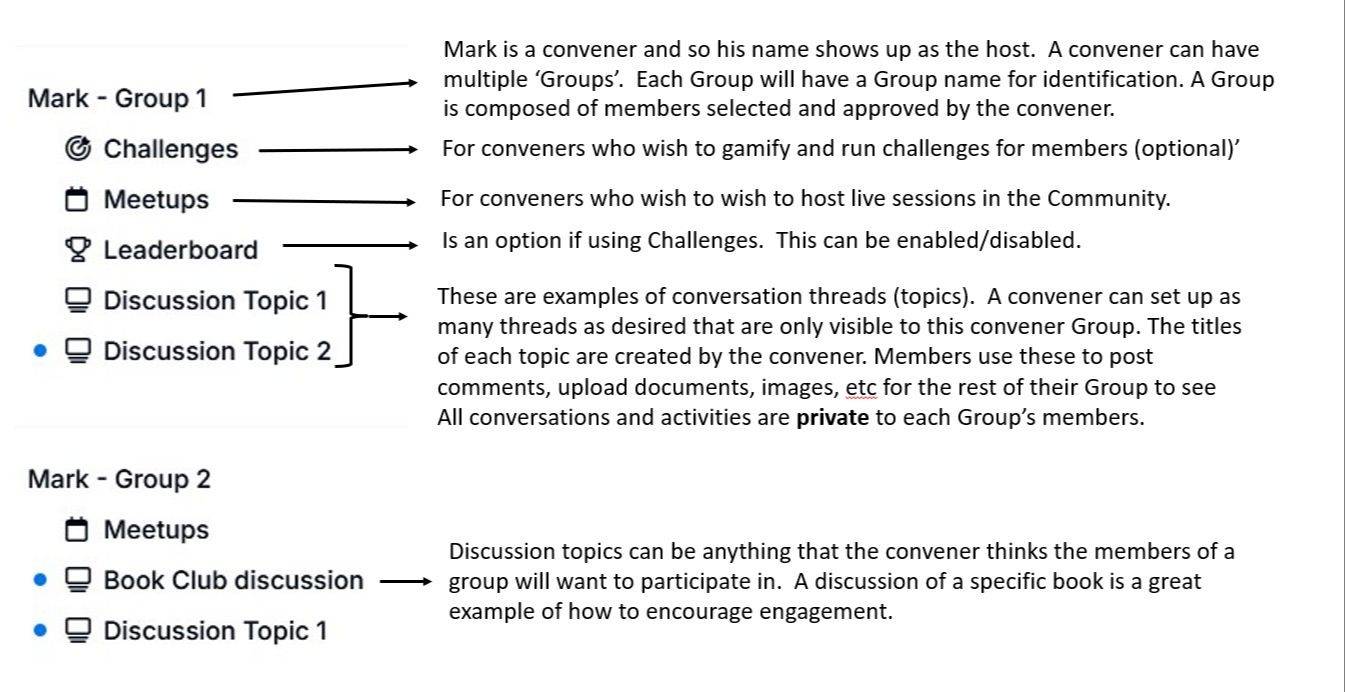
An example of the Community dashboard
The image below is an example of what the dashboard might look like for any Group. Each convener decides what is to be included in each Group.